
You can change the entire look of your dashboard with a single click. The app ships with four color themes, and your choice instantly recolors every page — charts, trade cards, buttons, and all.
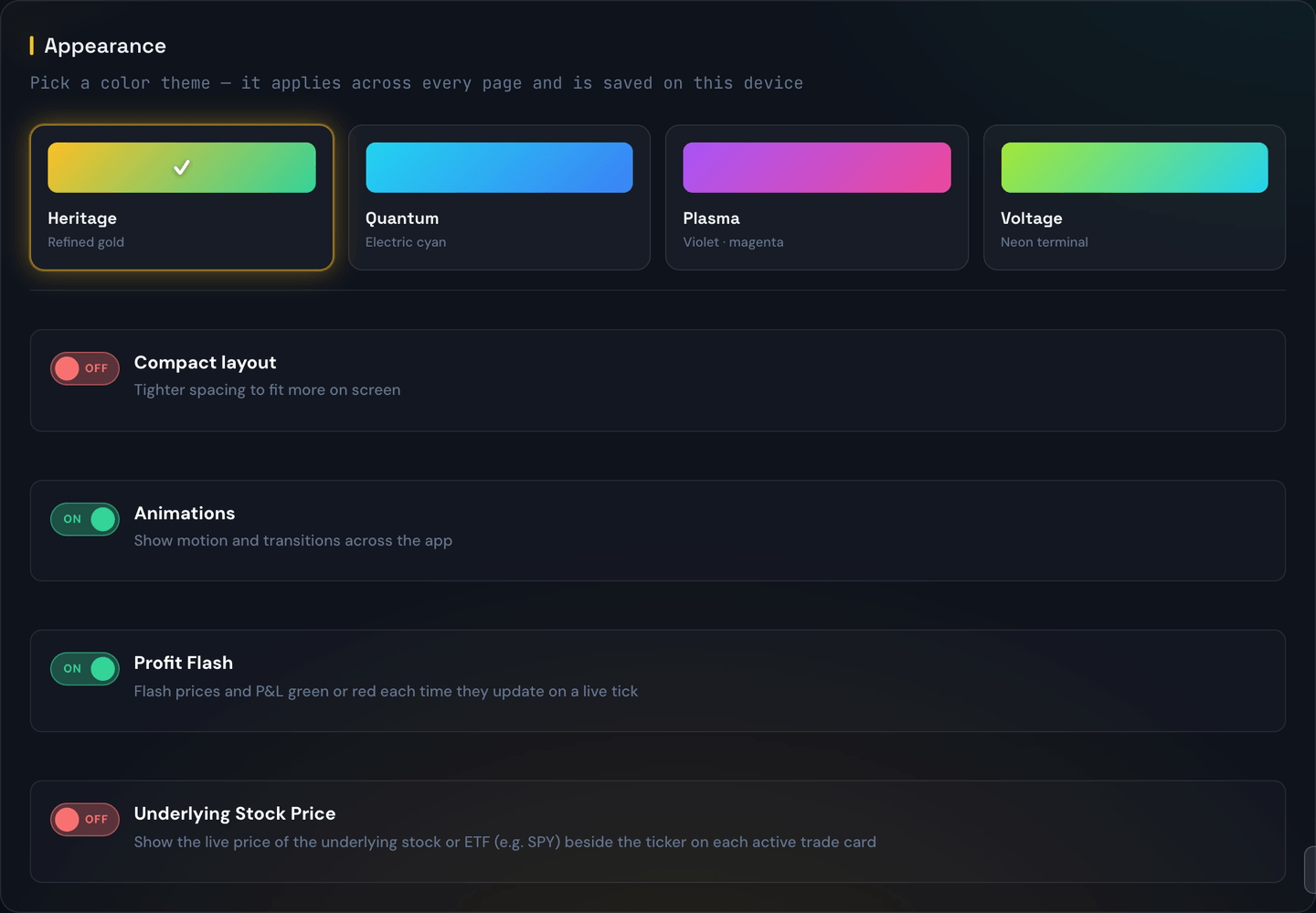
The four themes
- Heritage — refined gold on a near-black canvas. This is the default and matches the StaxInvesting brand.
- Quantum — electric cyan and blue, a cool high-tech feel.
- Plasma — vivid violet and magenta.
- Voltage — neon-green "terminal" look.
Every theme keeps the same meaning for colors that matter: green is always profit, red is always loss, no matter which theme you pick. Only the accents and background change.
How to switch themes
Open Dashboard Settings → Appearance and use the theme picker there. Each option shows its name, a short description, and a color swatch, so you can preview before you choose. Click one and the whole app recolors instantly; the option with a glowing ring is your current theme.
Tip
Your pick takes effect right away — there's no Save button for the theme, and you can switch as many times as you like.
Display options
Below the theme picker in Dashboard Settings → Appearance are a few more switches:
- Compact layout — tightens spacing across the app so more fits on screen at once. Handy on smaller laptops; leave it off for a roomier, easier-to-read view.
- Animations — turns the app's motion and transitions on or off. Switch it off if you prefer a completely still interface (or get motion sensitivity).
- Profit Flash — controls the quick green/red flash that plays on your live numbers each time a price updates. When it's on, a price or P&L value briefly pulses green when it ticks up and red when it ticks down, so the moving numbers catch your eye. Some traders love that heartbeat; others find the flicker distracting. Turn it off and the same numbers still update — they just change quietly, with no flash.
- Underlying Stock Price — off by default. When you turn it on, each active trade card shows the live price of the underlying stock or ETF right next to the ticker. For example, on a SPY call the header reads
SPY 12/29 747C · $611.23, where the $611.23 is SPY's own price ticking up and down in real time — handy when you like to watch how the stock is moving, not just your option's price. It only shows while a trade is open; turn it back off and the extra price disappears. See Live Trades for what else the card shows.
Compact layout and Animations apply instantly and are remembered on this device. Profit Flash and Underlying Stock Price are saved to your account, so they follow you to every device you sign in on.
Note
Profit Flash is separate from the Animations switch. Turning Animations off hides all motion (including the flash); Profit Flash lets you silence just the price flicker while keeping the rest of the app's animations. If you want the flash back but it isn't showing, make sure Animations is on too.
Where you'll see the flash
Profit Flash affects the live numbers across the portal — the totals in the top banner, the price and profit on each open trade card, the killswitch's running P&L, and the live rows on the Copy Trade page. One toggle covers them all.
For example, if you're holding an NVDA call and its price ticks from $4.15 up to $4.17, that price cell gives a brief green pulse; if the next tick drops it to $4.12, the pulse is red. Flip Profit Flash off and those same prices keep updating — just without the color blink.
Your choice is remembered
The theme you pick is saved on the device you're using, so the app looks the same the next time you open it on that browser. Switching themes only changes how things look — it never changes your trades, settings, or numbers.
Note
Because the setting is saved per device, you can run a bright theme on your desktop and a different one on your laptop without them affecting each other.
Example
Say you're trading at night and the gold Heritage theme feels too warm. Open Dashboard Settings → Appearance and pick Voltage, and the whole dashboard shifts to a cooler neon-green palette in an instant. Your active trades, P&L, and everything else stay exactly where they were — only the colors changed. Switch back to Heritage any time from the same picker.