
The 🔔 bell in the top bar is your in-app alert center. It collects the noteworthy things that happen while you're using the portal so you can catch up at a glance — even if you stepped away for a few minutes.
The count badge
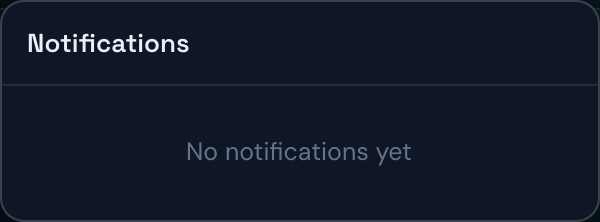
When something new happens, a small colored number appears on the bell — that's how many alerts you haven't looked at yet. Click the bell to open the list; opening it clears the unread count (the badge disappears), but the alerts themselves stay until you remove them.
What gets an alert
Four kinds of events show up here:
- A trade opens — e.g. New trade · SPY — 2 contracts opened.
- A trade closes — with the result and dollar amount, e.g. Closed · QQQ — Win +$420.00 (+38.0%). Losses are shown in red, wins in green.
- The trading bot (ATS) is updated — e.g. ATS updated — Trading bot updated to v2.6.0. This tells you the automation running your trades got a new release.
- The app is updated — App updated — A new version is available — refresh to update. This pairs with the New Version Banner at the top of the screen; see that topic for how to safely refresh.
Clearing alerts
- To remove a single alert, hover (or tap) it and click the × on the right.
- To wipe the whole list at once, click Clear at the top of the panel.
Note
This list is for your current session. When you reload or reopen the portal, it starts fresh — it isn't a permanent trade history. For your real records, use Trade History.
Want a sound or a pop-up too?
The bell is silent and only lives inside the portal. If you'd like an audible chime or a desktop banner when a trade opens or closes, turn on Sound Alerts and Browser Notifications in Dashboard Settings — they work alongside the bell.
Tip
The badge caps its display at 9+, so if you see that, open the panel to see exactly how many are waiting.