
Browser notifications pop up a small banner from your operating system — the same kind your email or chat apps use — whenever a new trade opens. They appear even when the portal isn't the active tab, which makes them perfect for working in another app while the bot does its thing.
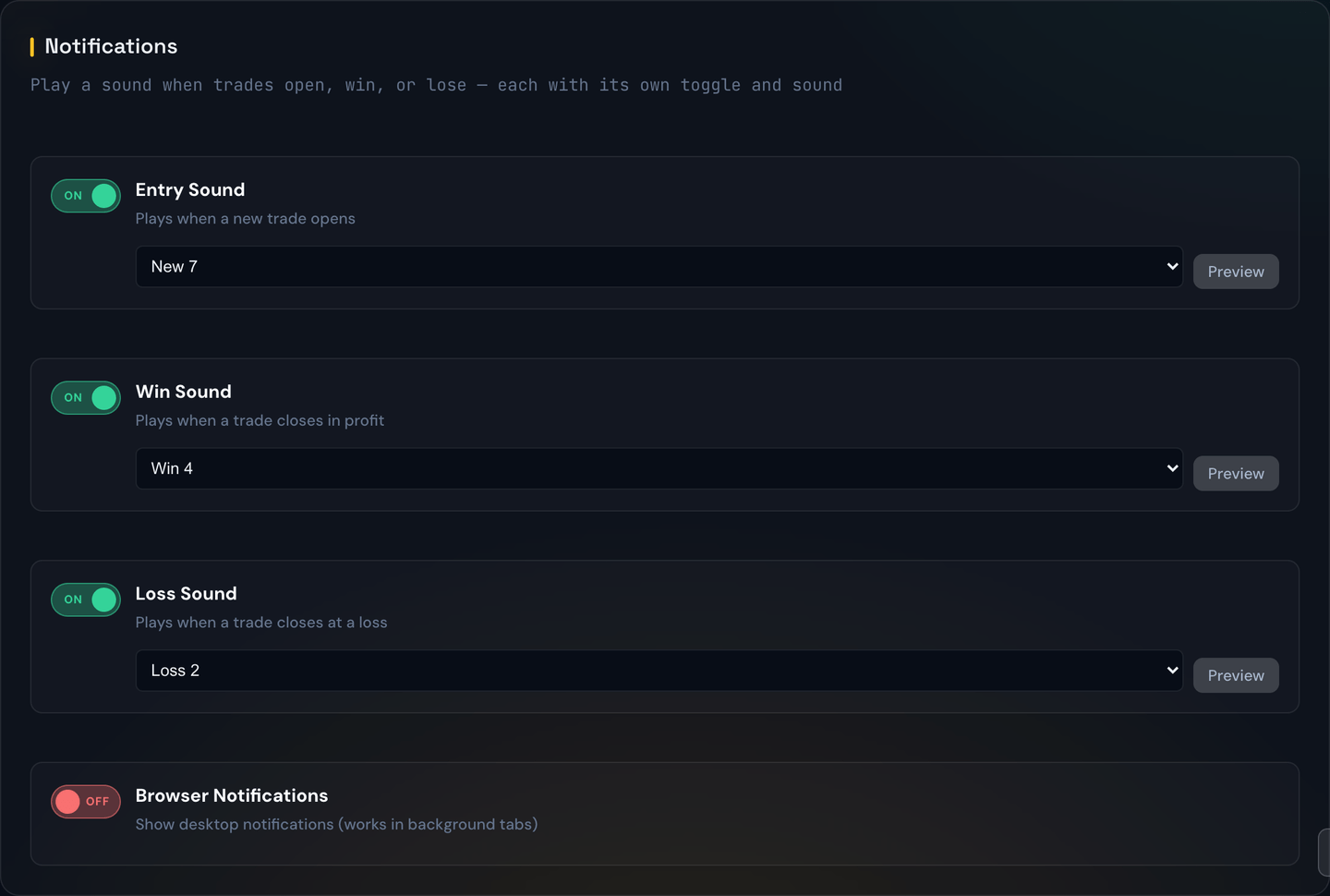
Turning them on
- Open Dashboard Settings.
- Flip Browser Notifications to On.
- Your browser will ask once for permission to show notifications. Allow it.
- Done. The next new trade will trigger a banner.
What a notification looks like
A typical banner shows:
- The ticker that just opened, e.g. SPY.
- The direction — Call or Put.
- A line of detail (entry price, strike, or strategy name).
Clicking the banner brings the portal tab to the front so you can see the trade right away.
If you denied permission earlier
If you accidentally clicked "Block" when your browser asked, you'll need to re-grant permission through your browser's site settings. The exact path varies:
- Chrome / Edge: click the lock icon in the address bar → Site settings → Notifications → Allow.
- Firefox: click the lock icon → Connection secure → More information → Permissions → Receive notifications.
- Safari: Settings → Websites → Notifications → set the portal to Allow.
After fixing permissions, return to Dashboard Settings and re-toggle the switch.
Tip
On macOS, banners that appear while Focus mode is on are saved to Notification Center but won't ping visibly. Turn Focus off (or add the browser as an "Allowed App") if you want to see them in the moment.