
Your Pages
Dashboard Settings is the home for your personal preferences — how the portal looks and what it tells you. None of these settings affect trading behavior; they just affect your experience.
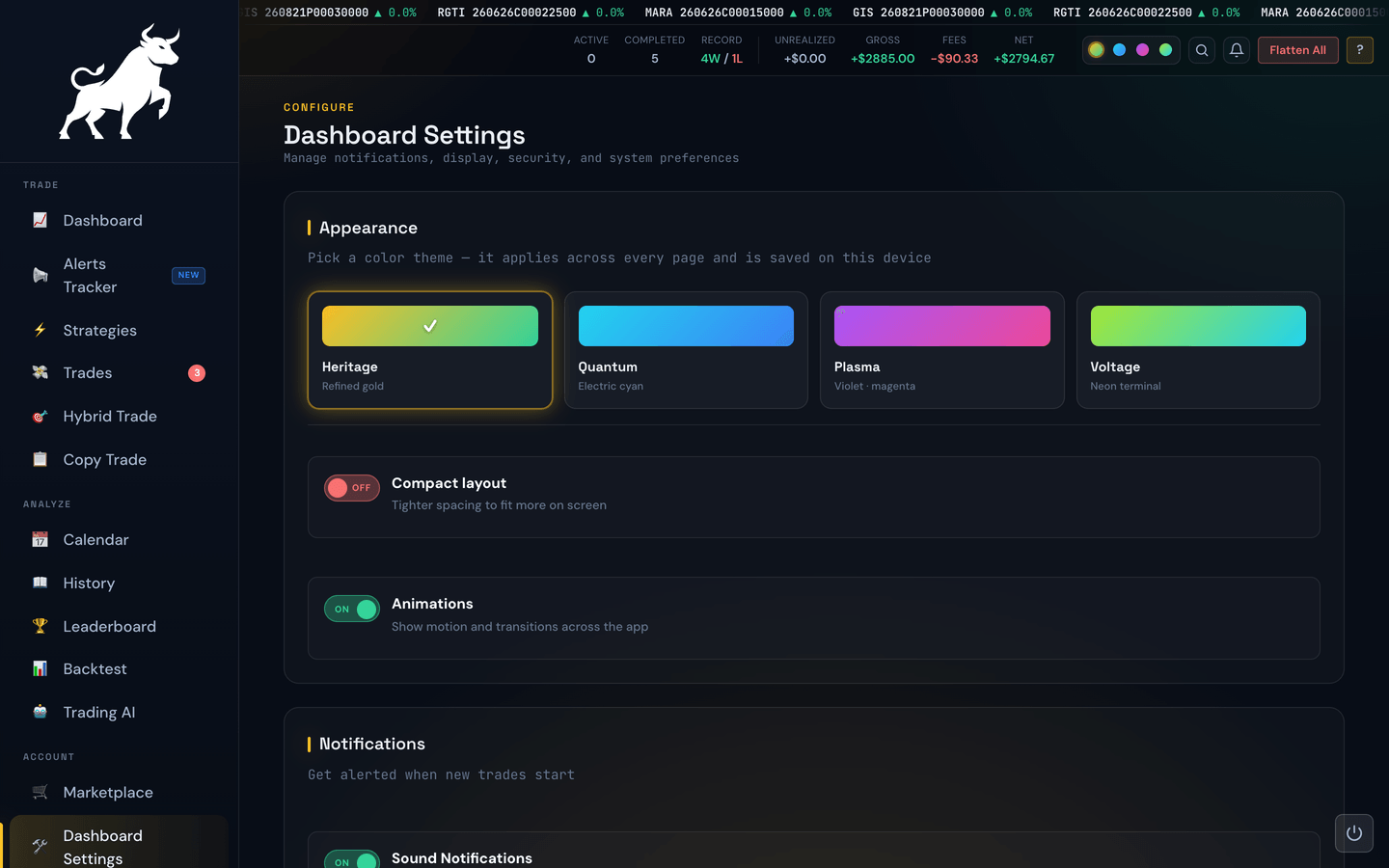
Notifications
- Sound alerts — toggle on to hear a chime whenever a new trade opens. A Test Sound button lets you confirm the chime is audible at your current system volume.
- Browser notifications — toggle on to receive a desktop notification when a new trade opens, even when the portal isn't the active tab. The first time you flip this on, your browser will ask for permission. Once granted, you'll get a small banner notification from your operating system.
Display
- Show broker fees — when on, all P&L numbers across the portal switch to show the net profit (after fees). When off, you see gross P&L only. This is a display preference — it doesn't change the trades themselves, only how the numbers are labeled.
Tip
Looking for the Underlying Stock Price toggle (the live stock price on your trade cards)? It lives just above, under Appearance — see Themes & Appearance.
Security
- Session timeout — controls how long the portal stays signed in while idle. After this time, a warning appears and you're returned to the sign-in screen.
System
Miscellaneous toggles for advanced display options and refresh behavior.
Tip
If you keep multiple browser tabs open with the portal, only one of them needs sound or browser notifications enabled. Most people pick the tab that's always open in the background and turn off notifications on the rest.