
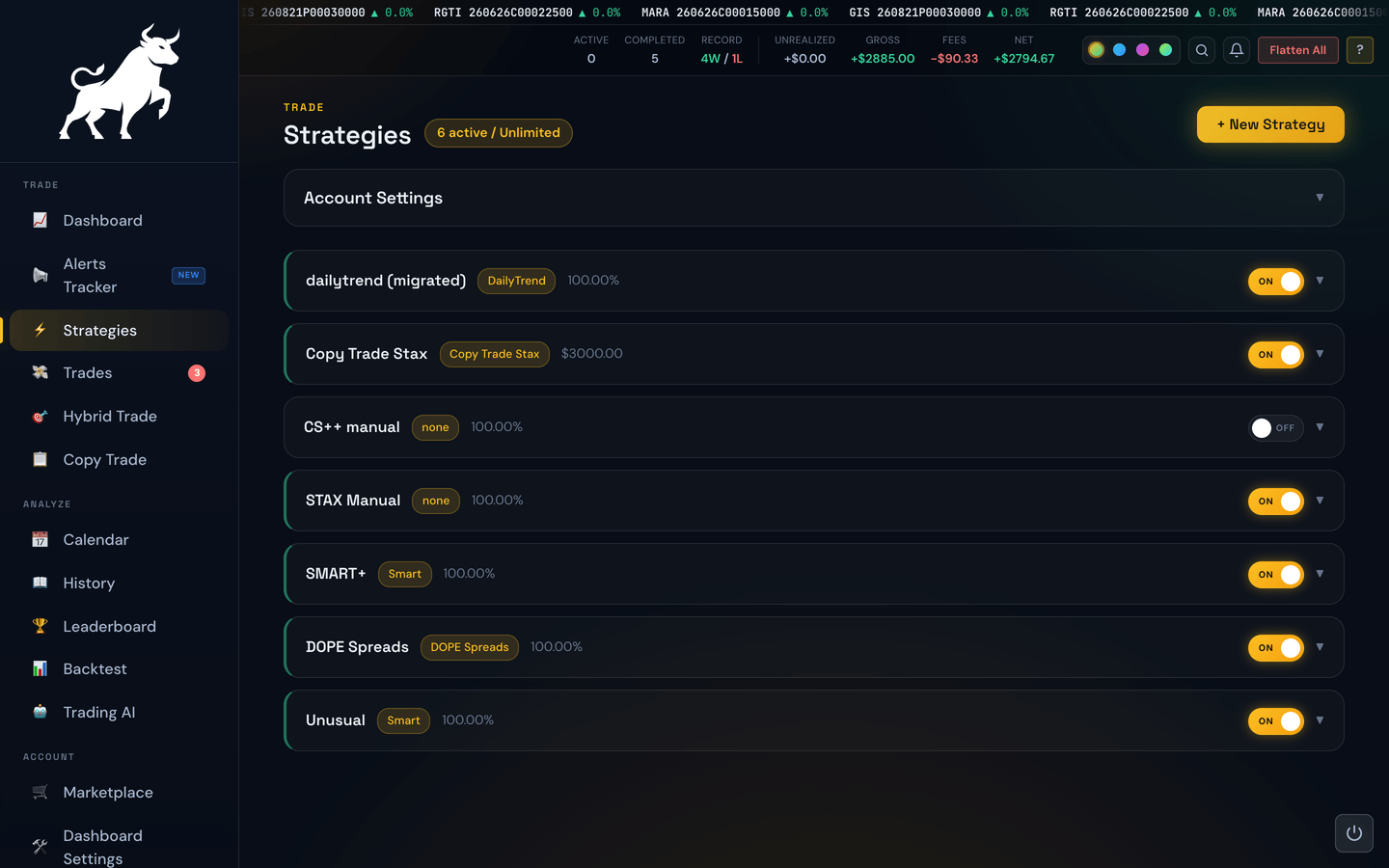
The Strategies page lets you run several rule books side-by-side on the same account. Each strategy is effectively its own independent bot, with its own settings, its own capital allocation, and its own source of alerts — all sharing one brokerage account.
Why use more than one strategy?
Different alert sources have different rhythms. A conservative day-trading strategy on SPY and an aggressive options strategy on QQQ have different correct stop-losses, different correct trade limits, and different correct trading hours. Running them as one strategy forces a compromise on every setting. Running them as two strategies lets each one be tuned for itself.
The page layout
At the top you'll see your account-wide controls — things that affect every strategy:
- Trading enabled — the master switch. If this is off, none of your strategies will trade.
- Account-level killswitches — daily profit / loss / unrealized limits that apply across the whole account. See Killswitch.
- Cash or margin mode — whether the account trades on cash or margin, which changes how fast your buying power frees up between trades. See Cash vs Margin Account.
- Active strategies count — how many of your strategies are currently turned on.
Below that, each strategy gets its own panel with the strategy's name, an enable/disable toggle, and a row of tabs for its settings: Identity & Capital, Risk & Orders, Filters, Schedule, and Trailing.
The strategy editor, tab by tab
When you create or edit a strategy, its settings are organized into five tabs. Here's what lives in each, with a link to the deep-dive topic for every setting.
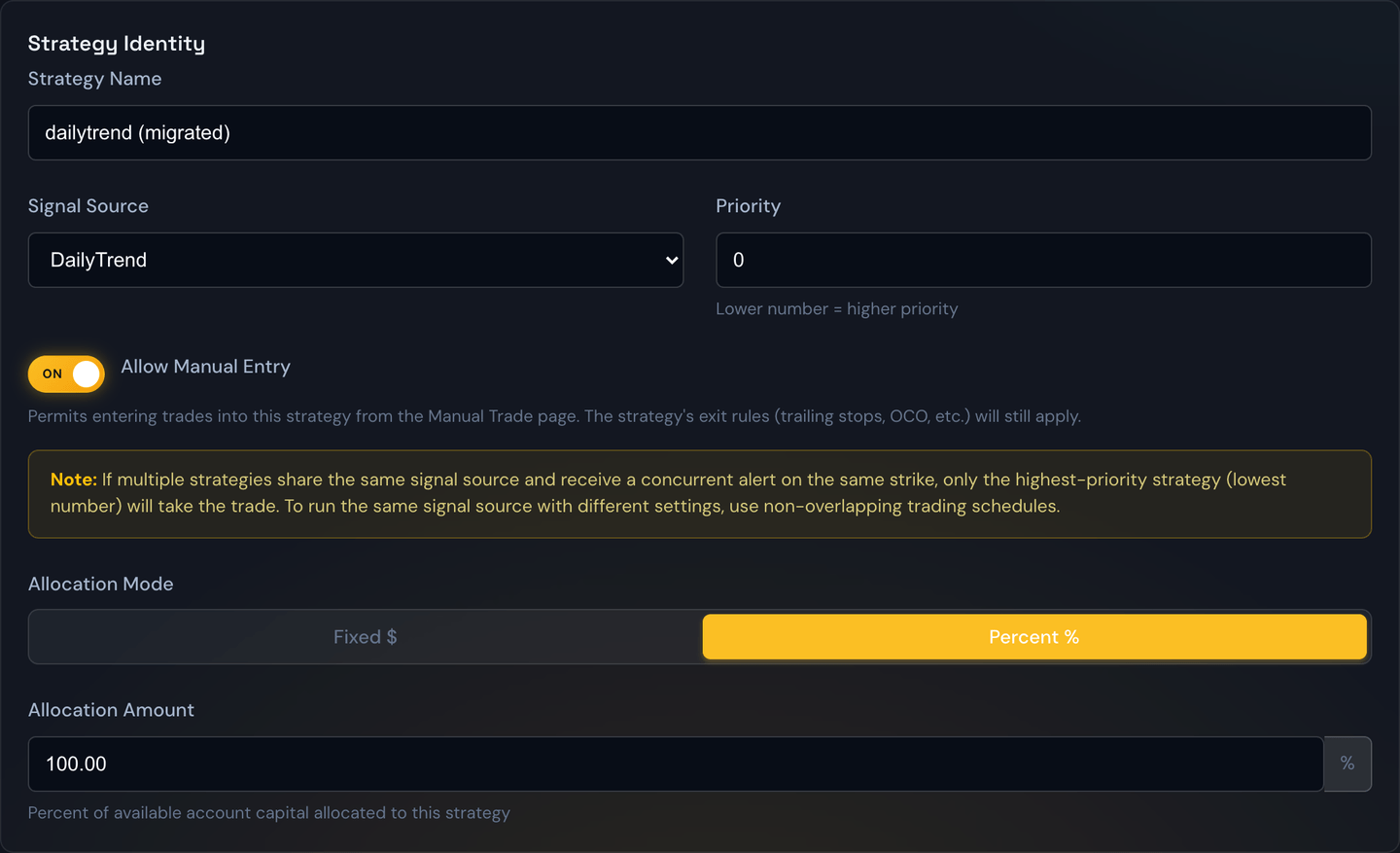
Identity & Capital — name the strategy, choose its alert source (Signal Sources), and set its budget (Capital Allocation). Bring-your-own-alert setups also configure their Webhook Integration here.
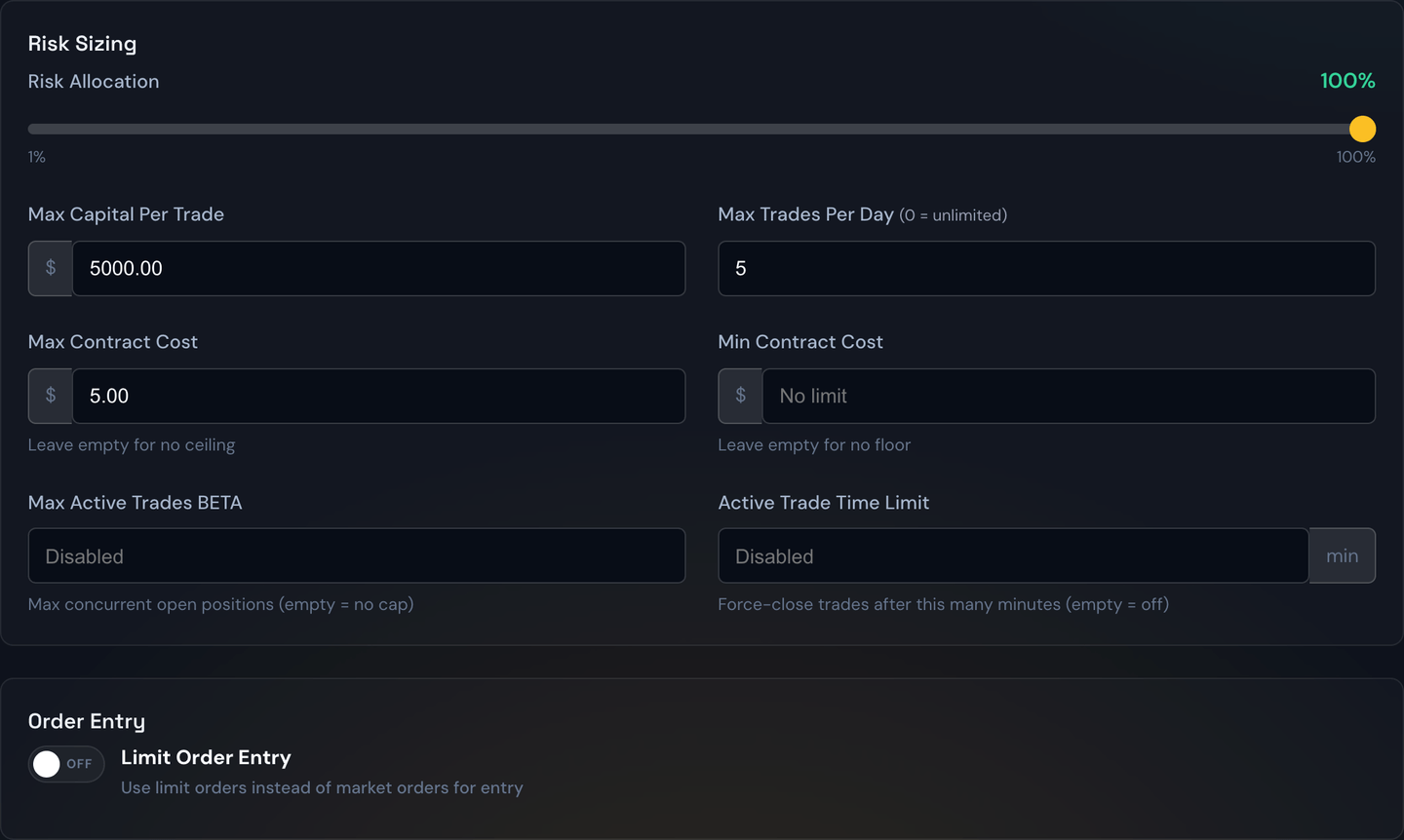
Risk & Orders — the exit rules and sizing: take-profit and stop-loss (Profit Target & Stop-Loss), the per-trade and per-day caps (Trade Limits), order-entry behavior, and any multi-leg exits.
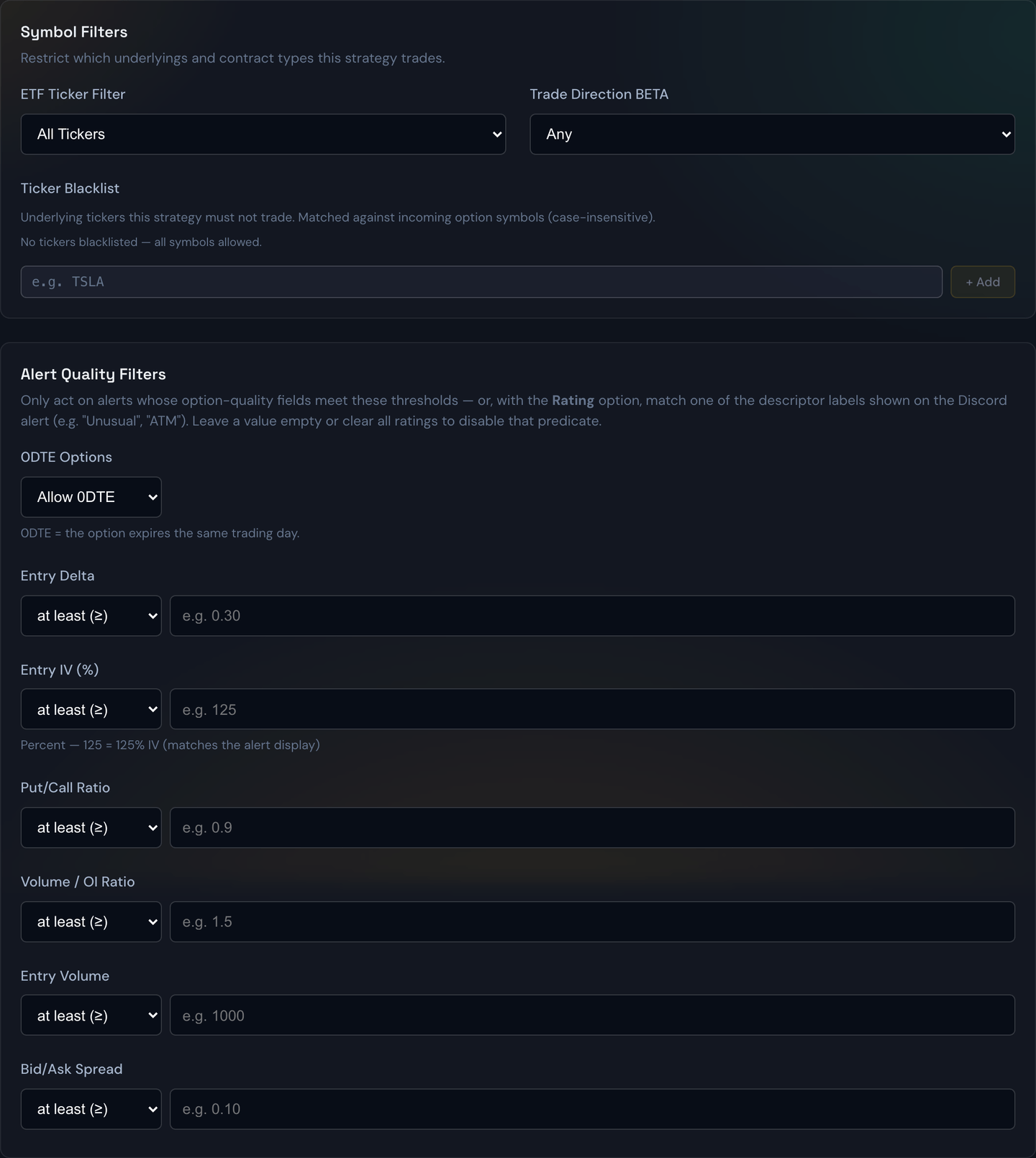
Filters — narrow which alerts the strategy acts on: the symbol filters, plus the option-quality screens in Alert Quality Filters (delta, IV, volume, spread, and the 0DTE toggle).
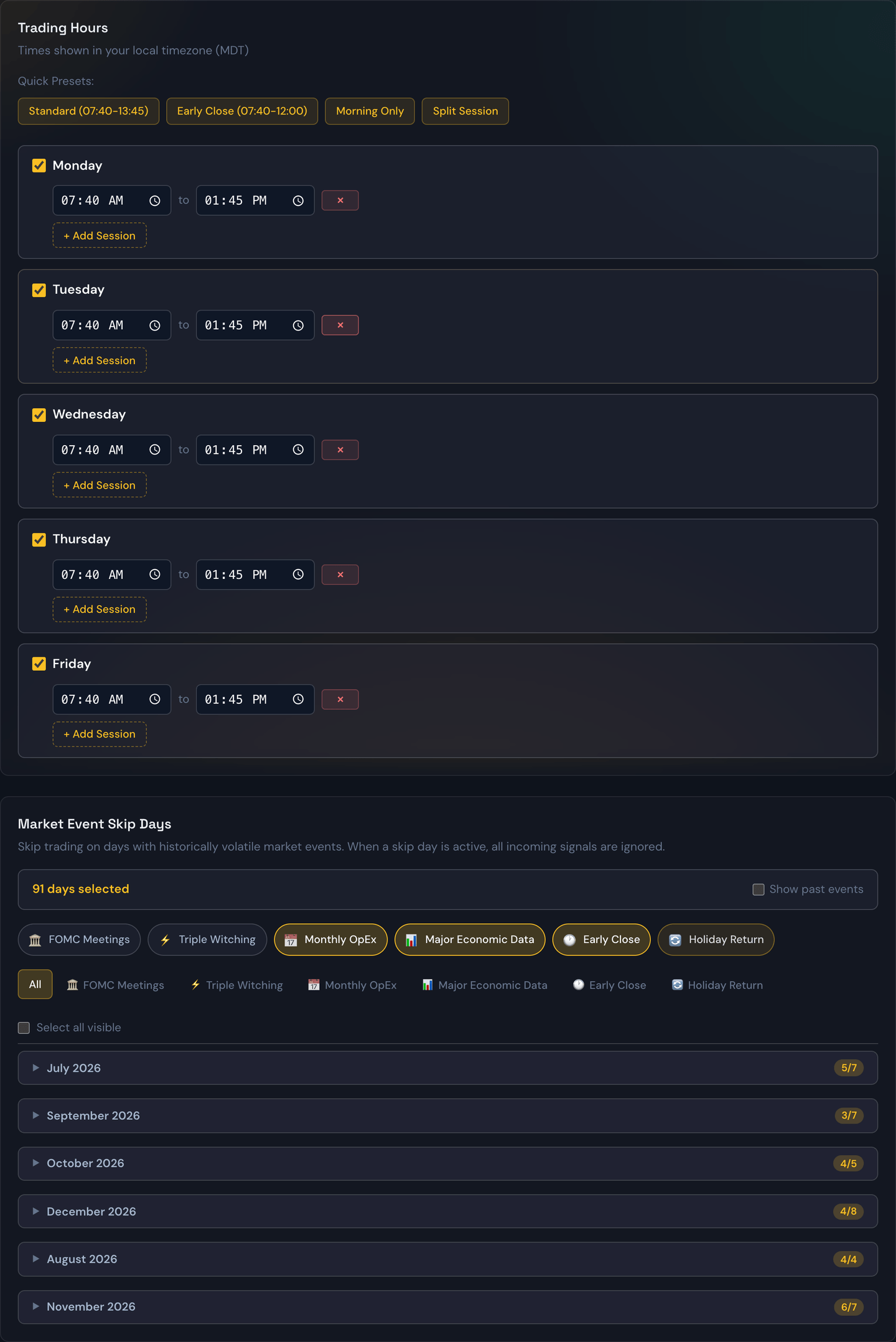
Schedule — the time-of-day windows the strategy may trade in (Trading Hours) and the dates it should sit out (Skip Days).
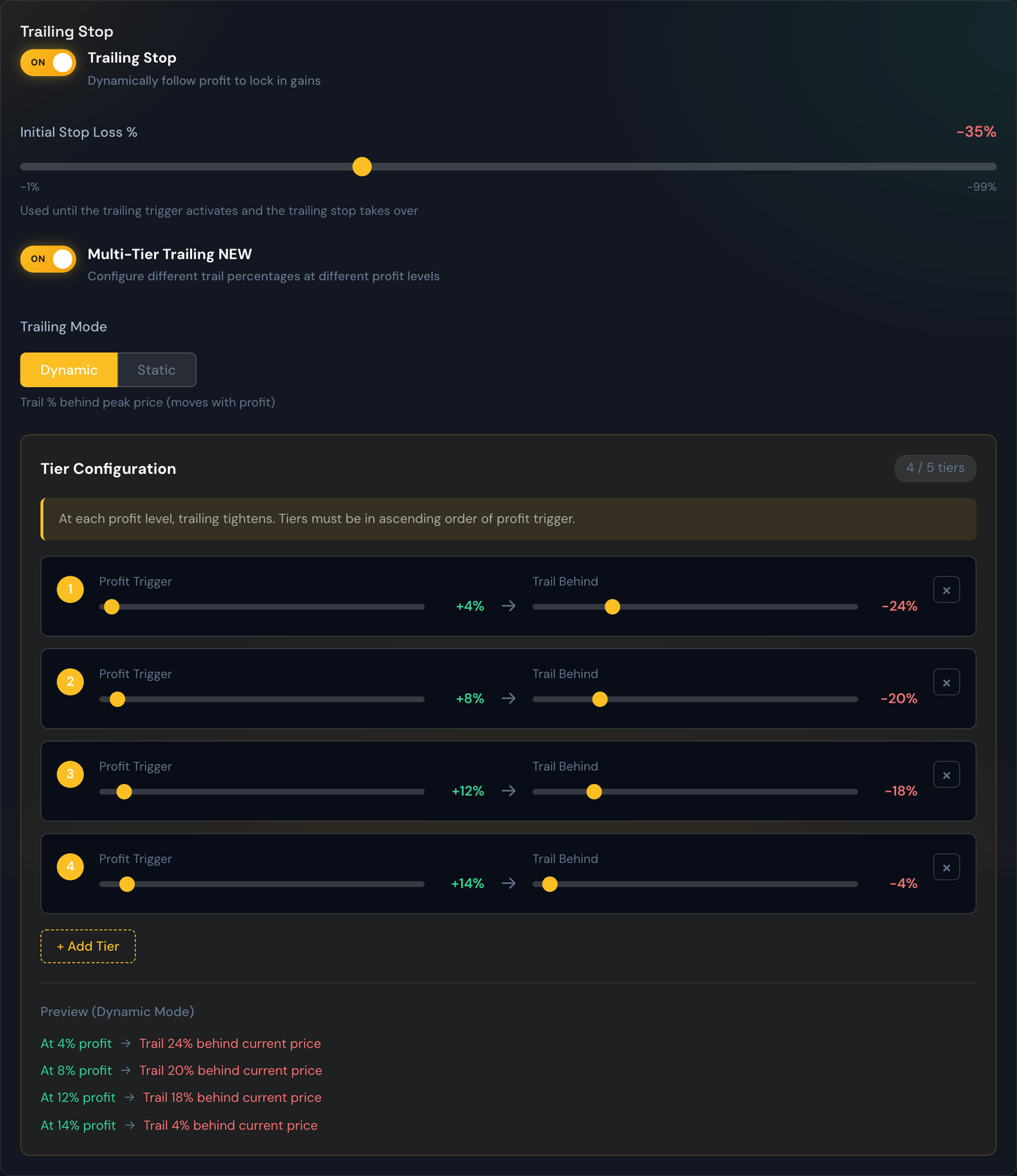
Trailing — switch the exit from a fixed bracket to a stop that follows the price up, including the laddered approach in Trailing Stop and Multi-Tier Trailing.
Adding, editing, and removing a strategy
- Create New Strategy — opens an empty panel where you pick the alert source, give the strategy a name, set its budget, and choose its rules.
- Edit — change any setting on an existing strategy.
- Enable / Disable — turn a strategy on or off without deleting it.
The ⋯ menu to the right of each strategy's on/off switch holds three quick actions:
- Clone — make a copy of an existing strategy to use as a starting point. See Cloning a strategy below.
- Create Share Code — instantly turn this strategy's settings into a short share code, copied to your clipboard, without having to open the editor first. See Sharing a strategy below.
- Delete — permanently remove the strategy. See Deleting a strategy below.
Cloning a strategy
Want a second strategy that's almost identical to one you already have? You don't have to re-enter every setting by hand. Click the ⋯ menu to the right of a strategy's on/off switch and choose Clone. A fresh New Strategy panel opens, pre-filled with all of that strategy's settings — alert source, budget, profit target and stop-loss, trailing rules, filters, trading hours, everything — and its name gets the word "Copy" added to the end.
Nothing is saved yet. The clone is just sitting in the new-strategy panel waiting for you to review it, tweak whatever you want, and press Create Strategy. If you change your mind, close the panel and nothing is created. Your original strategy is never touched.
Example
You have a strategy named "SPY Conservative" that you like, and you want an aggressive twin. Open its ⋯ menu and click Clone. You get "SPY Conservative Copy" with the exact same settings. Bump its risk up and widen its stop-loss, then press Create Strategy. Now you have both — one cautious, one bold — running side by side.
Note
A freshly cloned strategy always starts turned off, so you get a chance to look it over before it can place any trades. Flip its switch on when you're ready.
Sharing a strategy
Want to hand a friend the exact setup you're running, or save it to test on the Backtest page? Open a strategy's ⋯ menu and click Create Share Code. A short code (like STAX-7A67) is generated on the spot, copied straight to your clipboard, and a small window pops up showing the code with a Copy button in case you need to grab it again.
The same code is also dropped into your notifications bell (the 🔔 in the top-right corner), so even if you close the window by accident, the code is still there waiting for you.
The code captures everything about the strategy — alert source, budget, profit target and stop-loss, trailing rules, filters, trading hours, the works. Whoever pastes it into their own New Strategy panel (or into the Backtest page) gets an exact copy of your configuration, no numbers dictated by hand.
Example
You've dialed in a strategy called "SPY Conservative" and a friend wants the same thing. Open its ⋯ menu, click Create Share Code, and text them the
STAX-code that lands on your clipboard. They paste it into their own New Strategy panel and instantly have your setup — ready to review and turn on.
Tip
You can also generate a share code from inside the strategy editor with Copy Share Code. The ⋯ menu version is just the shortcut — it uses the strategy's saved settings, so use the editor version if you've made changes you haven't saved yet.
Deleting a strategy
To remove a strategy for good, open its ⋯ menu and click Delete. You'll be asked to confirm first, because this can't be undone — all of that strategy's settings are permanently erased. (You can also delete from inside the editor with the Delete Strategy button.)
Warning
Deleting is permanent and only affects the strategy's settings. It does not close any trade that strategy already has open. If a trade is live, close it first from its card, then delete the strategy. If you only want to pause a strategy, Disable it with its on/off switch instead of deleting — that keeps all its settings for later.
Capital allocation
Each strategy is given its own piece of the account: either a fixed dollar amount (e.g. $5,000) or a percentage of the account (e.g. 40%).
Example
You have $20,000 in the account. Strategy A is set to 50%, Strategy B is set to 50%. Both can run trades at the same time, splitting the pie. If both strategies want to trade at the same instant and there isn't enough buying power left to cover both, the one whose alert arrived first wins.
Priority
When two strategies subscribe to the same alert source, they run in priority order. The higher-priority strategy gets first crack at every alert; the lower-priority one only acts if the higher one didn't take the trade. This is how you can run, say, an aggressive variant and a conservative variant of the same alerts without either of them stepping on the other.
Manual-only strategies
You can also create a strategy that doesn't subscribe to any alert source. It only ever trades when you place an entry by hand from the Hybrid Trade page. Useful when you want to make discretionary trades that still inherit your exit rules.
Per-strategy controls
Each strategy panel has its own set of dials. These are the ones you'll touch most often:
- Max per trade — the dollar ceiling on any single trade taken by this strategy. The strategy will size each entry so it stays under this number.
- Daily trade counter — a cap on how many trades the strategy can open in one day. Once the counter is reached, the strategy stops opening new entries until tomorrow. Useful for keeping over-eager strategies in check.
- Skip days — a picker for days the strategy should sit out (specific dates, days of the week, or news days). See the Skip Days topic for the full rundown.
- Allow manual entry — flips on whether you can target this strategy from the Hybrid Trade page. Strategies with this off are automated-only.
- Share codes — copy a short share code that captures this strategy's full settings, or paste a share code from someone else to load their setup into a new strategy. Great for swapping configurations with a friend without dictating numbers by hand.
Tip
Changing one of these on a strategy that's currently running won't claw back a trade that's already open — it only affects what the strategy does going forward. To stop a trade that's already live, use the Close button on its card.